

Revised "Healthy" Nutrient Content Claim

Food Labeling: Nutrient Content Claims; Definition of Term “Healthy”
Final Rule: 21 CFR 101.65(d)
Free Webinar : Updates to Healthy Claims
Software: EZ Form Nutrition Navigator
Front-of-Package Nutrition Labeling

Food Labeling: Mandatory Front-of-Package Labeling
Proposed Rule: 21 CFR 101
Free Webinar: Front-of-Package Labeling
Learn More: Food Label Conference
Voluntary “Product of USA” Claims

Applies to: USDA foods
Comply by: January 1, 2026
Final Rule: 9 CFR 412.3
Webinar: USDA Label Claims Training
Services: Consulting
School Nutrition Standards Update

Applies: FNS & USDA foods
Effective: July 1, 2024
Final Rule: 7 CFR 210
Free Webinar: School Nutrition Update
Services: Consulting
Sesame Allergen - FASTER Act of 2021

Applies to: FDA foods
Comply by: January 1, 2023
Guidance:
Sesame Allergen
Training: Allergen Labeling
Services: Consulting
Expansion of Generic Label Approval
Applies to: USDA foods
Comply by: March 20, 2023
Guidance: Generic Labeling
Free Webinar: USDA Generic Expansion
Tools: USDA Label Audit Service
Services: USDA Compliance Report
Other Regulations

FDA Yogurt Standard of Identity
Final Rule: 21 CFR parts 130 and 131
FSIS Guideline for Label Approval
Updated March 2024: 9 CFR part 412
FDA Frozen Cherry Pie Standard
Final Rule: 21 CFR 152
Bioengineered Disclosure Standard
Final Rule: 7 CFR 66
Whether you need to brainstorm a marketing concept, construct a Nutrition Facts Panel, create claims, deliver label prototypes, review your label for compliance, or submit it to USDA for approval, Prime Label Consultants (PLC) has got your back. PLC Regulatory Consultants have daily interaction with government regulators from our offices on Capitol Hill in Washington, DC.
Confused by a multitude of regulations from numerous government agencies scattered across disparate sources? PLC's unique education services coalesce critical requirements in an easy to follow, structured framework. Whether customized on-site, via webinar, or individualized on Webex, you can hone your labeling skills in a way that makes sense for you.
Food labeling professionals occasionally feel alone in their mission to make complex labels compliant. Come to Prime Label's annual Food Label Conference to get motivated by top FDA, USDA, FTC, industry experts and peers. This two-day conference covers everything you need to know about Nutrition Label Reform, leading edge claims, and trends in labeling.
Sometimes you just want to be in control of your own fate. Prime Label's EZ Form® Software with Nutrition Navigator takes the complexity out of compliance. With smart checks, claims wizards, compliance calculators and comprehensive record keeping, this software is trusted by over 400 brands for nutrition, claims, and label prototype development.

Nutrition Label Reform (NLR)
Nutrition & Menu Labeling
Label Prototype Construction
Label Review
USDA Approval
Outsourcing
Consulting
Audits

Nutrition Label Reform
FDA Label Basics
USDA Label Basics
Label Graphics & Trends
Nutrition Labeling
USDA Generic Labeling
Labeling & Marketing Claims
Individual Product Coaching
Label Training Manuals

Expanded 2 day Agenda
Nutrition Label Reform
Keynotes by FDA, USDA, FTC
Four Tracks for FDA, USDA, Marketing and Experts
Extensive Breakouts
Add-on Labeling Training
Valuable Networking
Grand Hyatt, Washington DC

FDA, USDA, Health Canada
NLR Conversion Assistance
Nutrition & Serving Wizards
Claims Calculators
Sketch & Spec Sheet Builder
Regulations Databases
USDA Labeling Features
CN Labeling & ADA Exchange
Powerful Recordkeeping
Compliance Smart Checks
Nutrition Facts & Label Copy
Menu Labeling
FDA & USDA Label Review
Supplier Coordination
Nutrition Label Reform
Label & Ad Copy Review
Marketing Councils
Leading Edge Claims
Nutrition Facts Panels
Label & Website Review
USDA Approval
Training & Software
USDA, FDA, Commerce
Label Appeals
Petitions & Comments
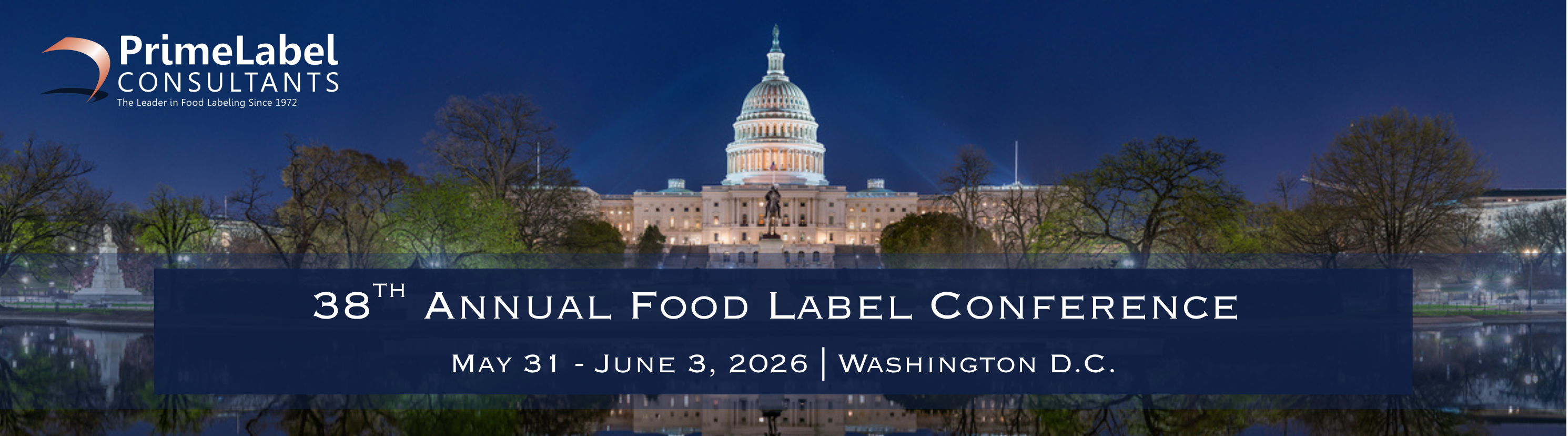
Food Label Conference